How to fix a poor CLS score: stop your pages jumping around
Why your pages fail Cumulative Layout Shift, how to find the element that moves, and the fixes that bring CLS under 0.1 on WordPress, Webflow and custom sites.

- Published
- Reading time
- 7 min
TL;DR · Key takeaways
- CLS measures how much the page jumps around while people use it. Good is 0.1 or less at the 75th percentile of real visits; poor is over 0.25.
- Almost every layout shift has one of five causes: images without dimensions, ads or embeds without reserved space, banners injected above content, web fonts that change size, and animations of layout properties.
- The fix is nearly always the same idea: reserve the space before the content arrives, or put late content on top of the page instead of inside it.
- Lab tests only see shifts during load. Search Console's field data also counts shifts while people scroll, so check both.
You start reading a page, an image loads above the paragraph, and the text jumps down. Or you go to tap a link and an ad appears and you tap the wrong thing. That’s layout shift, and CLS, Cumulative Layout Shift, is the Core Web Vital that measures it.
If Search Console shows CLS issue: more than 0.1 (mobile), this guide shows how to find what’s moving and stop it. CLS is usually the cheapest of the three vitals to fix. Once you know which element moves, the fix is often a few lines.
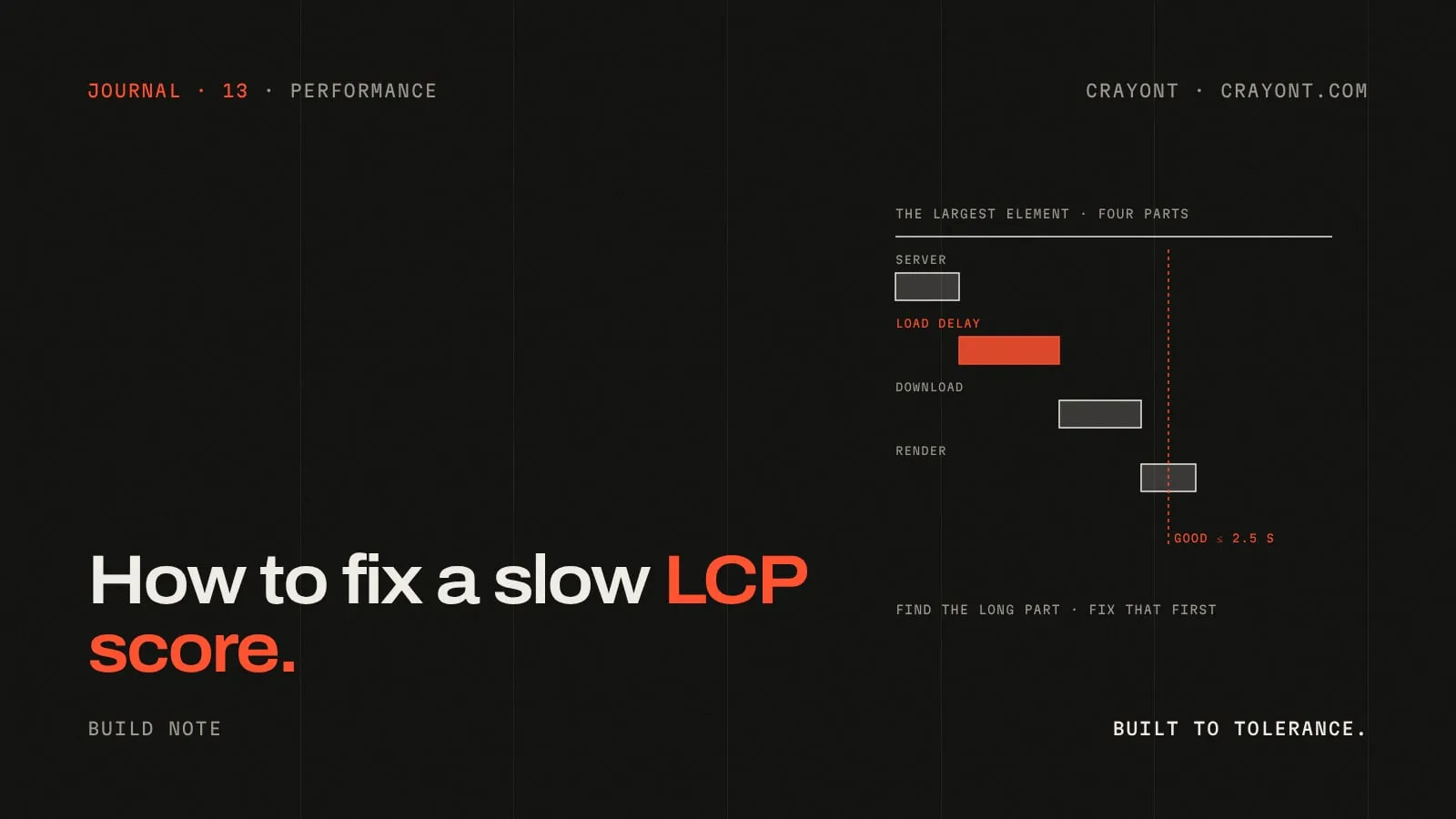
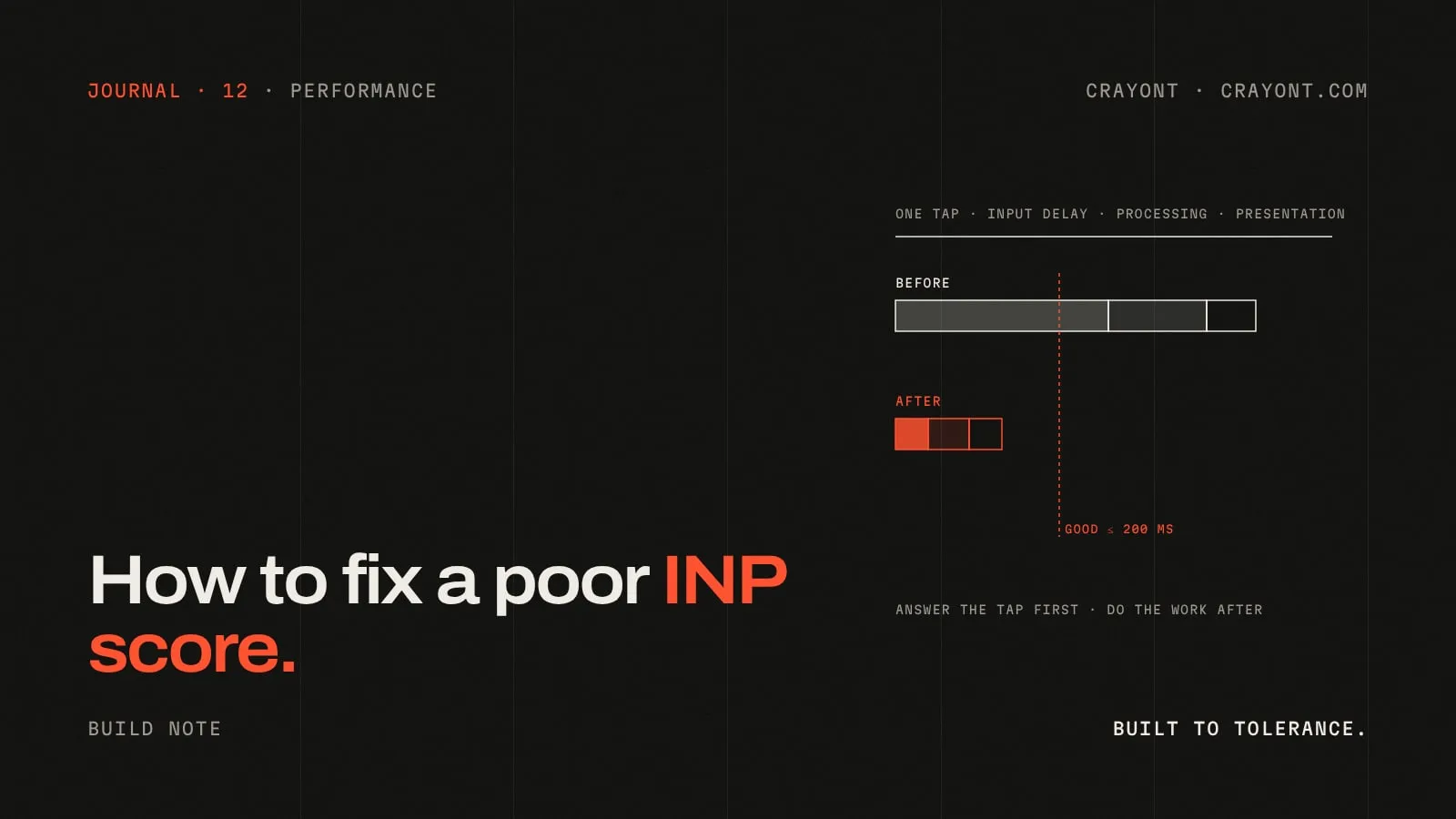
It’s the third guide in a set. We’ve also written about fixing a slow LCP and a poor INP.
The thresholds
| CLS at the 75th percentile | Rating |
|---|---|
| 0.1 or less | Good |
| 0.1–0.25 | Needs improvement |
| Over 0.25 | Poor |
CLS has no unit. Each shift gets a score from how much of the screen moved and how far it moved. Shifts that happen close together are grouped into a burst, and your CLS is the worst burst during the visit. So one bad jump can fail a page that is otherwise stable.
Two details matter:
- Shifts right after a tap or click don’t count. If someone opens an accordion and the content below moves down, that’s expected. Only movement nobody asked for counts.
- Shifts after loading do count. A banner that appears after ten seconds, or an image that loads as someone scrolls to it, adds to CLS in real-user data.
The five usual causes
Nearly every layout shift we see on business sites comes from one of these:
- Images and videos without dimensions. The browser doesn’t know how tall an image will be until it downloads, so it leaves no space. When the image arrives, everything below it moves down.
- Ads, embeds and iframes without reserved space. Maps, YouTube videos, social posts, booking widgets and ad slots arrive late and push content aside.
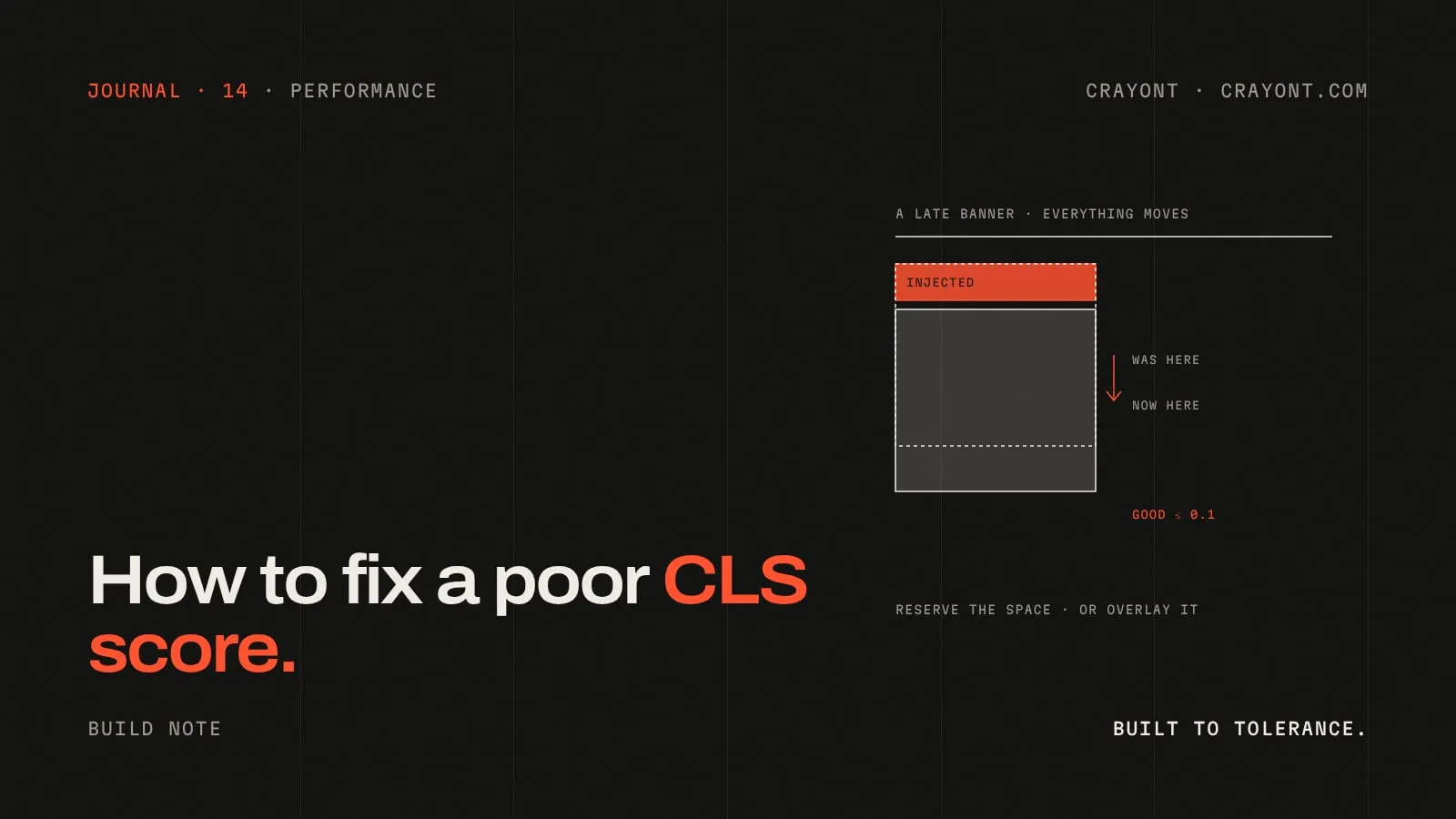
- Content injected above existing content. Cookie banners, promo bars, “we’re hiring” notices and newsletter boxes inserted at the top of the page shove everything down.
- Web fonts that change size. Text renders first in a fallback font, then swaps to the web font. If the two fonts have different widths or line heights, paragraphs reflow and everything below moves.
- Animations of layout properties. Animating height, width, top or margin moves surrounding content on every frame. Animating transform or opacity doesn’t.
Step 1: find the pages that fail
Open Google Search Console → Core Web Vitals, check both Mobile and Desktop, and click the CLS issue. Google groups similar URLs, so you’ll usually see one template failing: blog posts with embeds, product pages with galleries, or every page with a particular banner.
No Search Console data yet? Test the URL in PageSpeed Insights. Its field section shows real-user CLS when Google has enough data; the lab section shows shifts during load.
Step 2: find the element that moves
PageSpeed Insights. In the diagnostics, look for Avoid large layout shifts or the layout shift culprits insight. It lists the elements that moved and, where it can tell, the cause, such as an unsized image or a web font.
Chrome DevTools. For more detail:
- Open DevTools → Performance, set the mobile view and turn on throttling.
- Click Record and reload, and after the page loads, scroll slowly to the bottom while recording.
- Look at the Layout shifts track. Click each shift to see which elements moved and the score it added.
Scrolling during the recording matters. Many shifts only happen when lazy-loaded images, ads or embeds further down the page arrive.
Your own eyes. Load the page on a phone over mobile data and watch the first few seconds and the first scroll. The big jumps are usually obvious once you look for them.
Step 3: fix the cause
Images and videos: give them dimensions
- Add
widthandheightattributes to every<img>and<video>. Modern browsers use them to work out the aspect ratio and reserve the right space before the file loads, even when CSS makes the image responsive. - For CSS-sized boxes, use
aspect-ratio. A hero container withaspect-ratio: 16 / 9keeps its shape whether the image has loaded or not. - Check sliders and galleries. Many set their height with JavaScript after the images load. Give the container a fixed aspect ratio in CSS instead.
On WordPress, the editor adds dimensions to images inserted normally, but themes, page builders and some plugins strip them. Check the page’s HTML for <img> tags without width and height. Webflow adds dimensions when an image element has a set size; background images in a box with no height are the usual problem.
Ads, embeds and iframes: reserve the space
- Give every embed container a minimum height or aspect ratio that matches what will load into it:
aspect-ratio: 16 / 9for a video, a fixed height for a map or booking widget. - For ad slots, reserve the most common ad size. If the slot sometimes stays empty, show a placeholder rather than collapsing it.
- Don’t put ads or embeds at the very top of the content. A late element high on the page moves everything below it.
- Replace heavy embeds with a click-to-load preview. A static image of the map or video, sized correctly, loads the real embed only when tapped. That fixes CLS and speeds up the page.
Banners and notices: overlay, don’t insert
- Cookie banners: fix them to the bottom of the screen as an overlay. Don’t insert them at the top of the page.
- Promo bars and notices: if a bar must sit above the header, render it in the HTML from the start so the space is always there. Don’t add it with JavaScript after load.
- Newsletter boxes and pop-ups: use an overlay or a slide-in, not a block injected into the article.
This is often the quickest win, because one global banner can fail every page on the site.
Web fonts: make the swap invisible
- Preload the one or two font files used above the fold, so the web font is usually there before text renders.
- Use
font-display: optionalfor body text if you’d rather keep the fallback font than see a reflow on slow connections. - Match the fallback font’s size. The CSS
size-adjust,ascent-overrideanddescent-overrideproperties make the fallback take up the same space as the web font, so the swap doesn’t move anything. Frameworks such as Astro and Next.js can generate these fallbacks for you. - Host fonts on your own domain rather than a third-party font service. That removes an extra connection and makes the font arrive sooner.
Animations: move with transform
- Animate
transformandopacityonly. A card that slides in withtransform: translateY()doesn’t move its neighbours; one that animatesmargin-topdoes. - Expanding sections: if something expands on its own, without a click, reserve its final height or animate it with a transform.
- Sticky headers that shrink on scroll: make sure the header is taken out of the page flow (fixed or sticky positioning) so its size change doesn’t move the content.
Platform notes
WordPress. Check your theme and page builder for images without dimensions and for sliders that size themselves with JavaScript. Look at cookie-consent and popup plugins next. Many insert banners at the top of the page by default, and most have a setting to show them as a bottom overlay.
Webflow. Give background-image sections an explicit height or aspect ratio, and check Interactions that animate height or margin on page load. Embeds added with the Embed element need a sized wrapper.
Shopify and hosted platforms. Apps that inject review widgets, announcement bars and upsell blocks are the common cause. Check each app’s placement settings, and remove apps you don’t use.
Custom builds. Server-render the layout so the structure is complete in the HTML, use the framework’s image component with dimensions, and reserve space for anything that loads on the client, such as personalised banners or data-driven blocks.
Step 4: confirm the fix
- Re-run PageSpeed Insights and a DevTools recording, scrolling the full page.
- In Search Console, open the CLS issue and click Validate fix. Google tracks the affected pages for 28 days.
- Keep an eye on the Core Web Vitals report. Field data moves gradually because it’s a 28-day window.
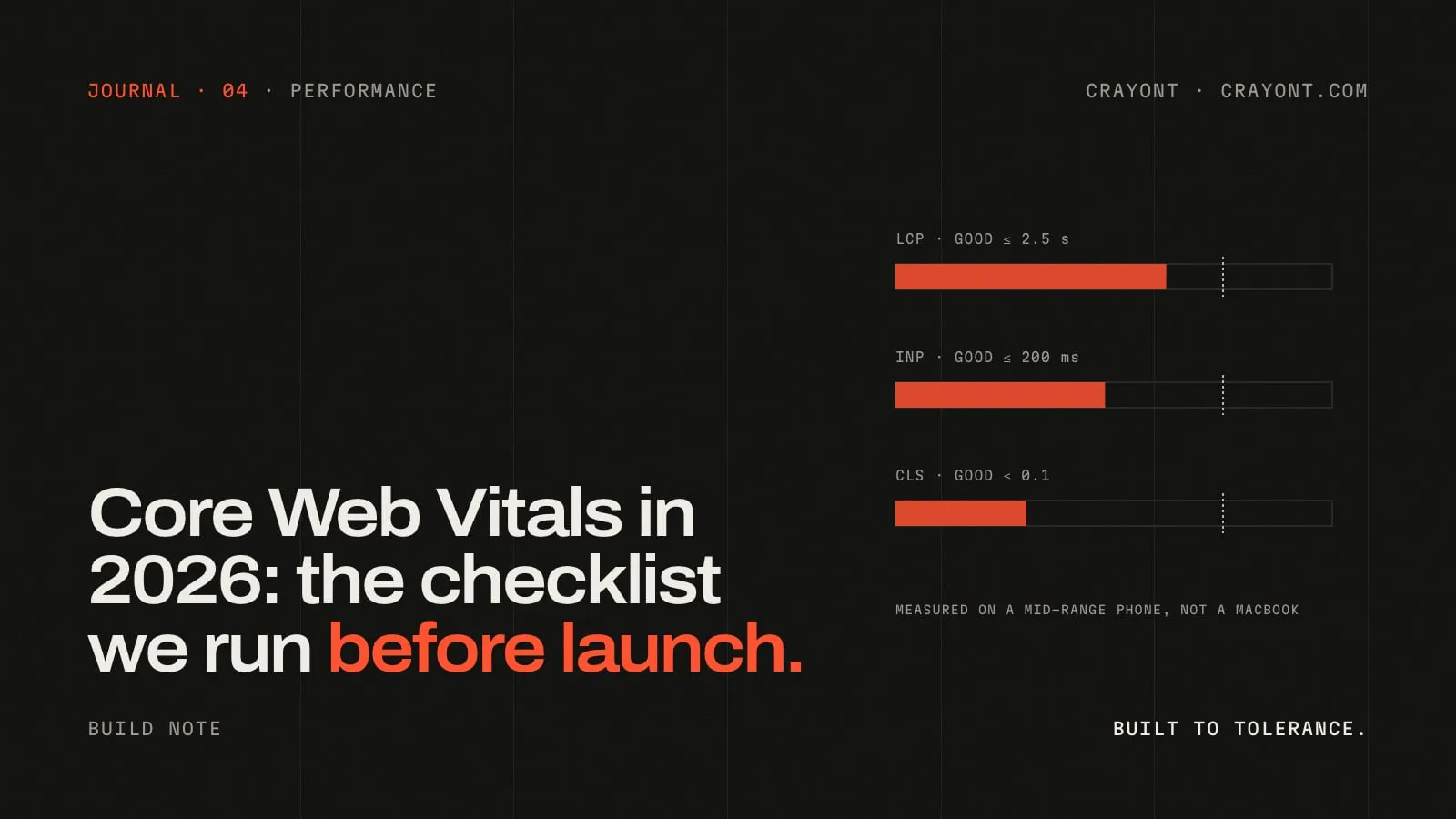
For all three vitals in one list, see our Core Web Vitals checklist. On our own builds we aim for a CLS budget of 0.05, half Google’s threshold, so a late widget can’t tip a page over.
When to get help
If images have dimensions, banners are overlays and fonts are preloaded, but CLS is still poor, the cause is usually buried in a theme, a page builder or third-party scripts. That’s developer work.
Our Core Web Vitals audit starts at ₹15,000. It measures your real-user data, finds the elements that move on each template, and gives you a prioritised fix list your own developer can follow, or we can make the fixes. If the site needs rebuilding anyway, see our website redesign service. You can see sites we’ve built on our work page, and if you’d like us to look at yours, send us the URL.
Questions people ask
- What is a good CLS score?
- 0.1 or less, measured for real visitors at the 75th percentile. Between 0.1 and 0.25 needs improvement, and over 0.25 is poor. Unlike LCP and INP, CLS has no unit: it's a score based on how much of the screen moved and how far.
- Why is CLS fine in Lighthouse but poor in Search Console?
- Lighthouse loads the page once and stops. Real visitors scroll, open menus and wait for ads, chat widgets and cookie banners to appear, and shifts that happen then still count. Search Console reflects all of that, so trust the field data and test by scrolling the page yourself.
- Does clicking a button that opens content count as a layout shift?
- No. Shifts within half a second of a tap, click or key press are expected and excluded. An accordion that opens when clicked is fine. Content that moves by itself, with nobody touching it, is what counts.
- Can a cookie banner cause a poor CLS score?
- Yes, if it's inserted at the top of the page and pushes everything down. Show it as an overlay fixed to the bottom of the screen instead, so it covers content rather than moving it.
Keep reading
All notes →- How to fix a slow LCP score: a step-by-step guide for business websitesWhy your site fails Largest Contentful Paint, how to find the LCP element and which of its four parts is slow, and the fixes that bring LCP under 2.5 seconds on WordPress, Webflow and custom sites.
- How to fix a poor INP score: a step-by-step guide for business websitesWhy your site fails Interaction to Next Paint, how to find the slow tap in Search Console and Chrome, and the fixes that move INP under 200 ms on WordPress, Webflow and custom sites.
- Core Web Vitals in 2026: the checklist we run before every launchThe three Core Web Vitals (LCP, INP, CLS), their thresholds, why sites usually fail them, and the fix list we run on every site before it goes live.